
| Copyright © 1999-2002 NoteRight.com |
Internet Explorer 5.5 Certificate Installation Example
Below are some screen shots of the dialogs produced by Internet Explorer 5.5.
The appearance of these dialogs may vary depending on the version number of your particular Internet Explorer, but in
general, you will see something like this:
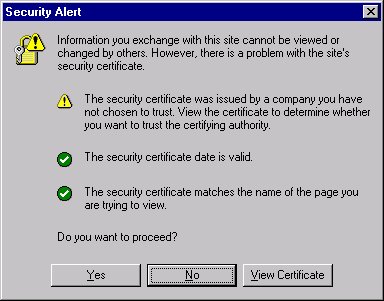
STEP 1: When you first access a secure NoteRight 3000 webpage, IE will pop-up a
security alert notice shown below. You should next click "View Certificate" to proceed.
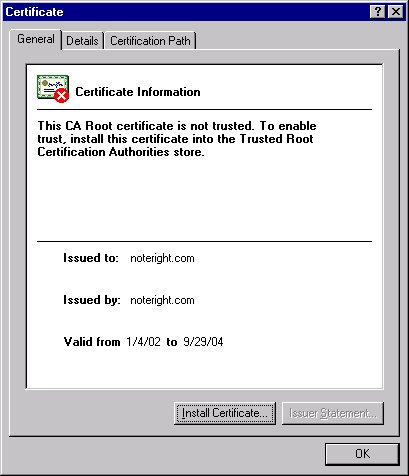
STEP 2: This screen initiates the process of certificate installation. Click "Install Certificate:"
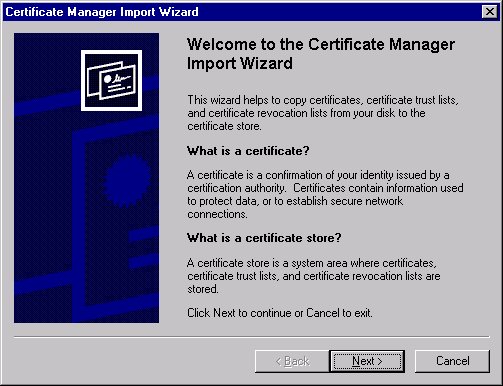
STEP 3: Here is the Certificate Wizard that launches automatically. You can just hit "Next"
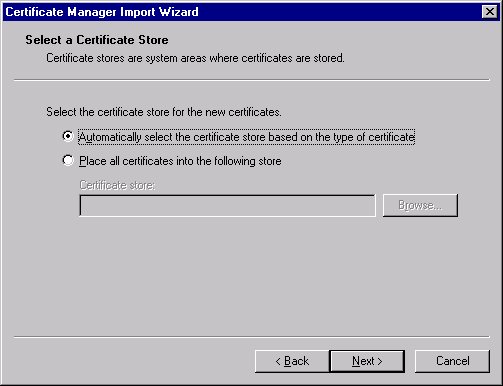
STEP 4: And "Next" again:
STEP 5: Then click on "Finish:"
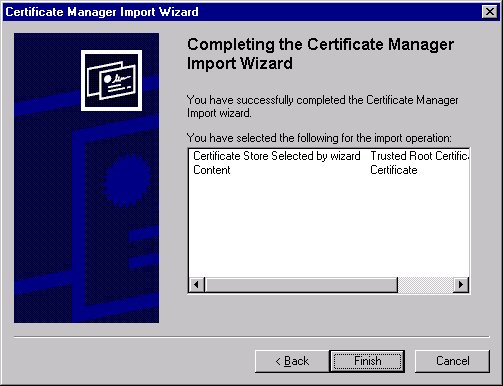
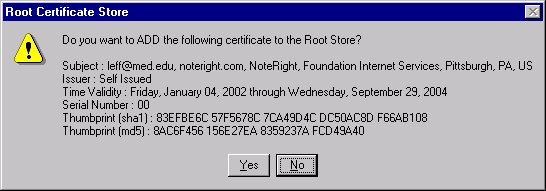
STEP 6: You are actually not done yet! The system next shows you technical information about the certificate. Click "Yes" to proceed:
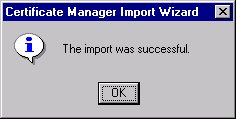
STEP 7: If all goes well you will see this:
STEP 8: Now you must back out of some lingering dialogs. Below, you now hit "OK:"
STEP 9: Finally hit "Yes" in the dialog box below. The certificate installation process is done only once, and need not be repeated until the certificate expires (in 2004 in the example above.)